
Member
The Membership section is used to manage the registered members of the current business or store.
Main Information
A member record includes the following information:
Basic Information
| Category | Field | Description | Required |
|---|---|---|---|
| Basic Information | Identifier | The member's unique identifier. | Required |
| Last Name | The member's last name. | Required | |
| First Name | The member's first name. | Optional | |
| Phone | The member's contact phone number. It must be an Australian (+61) phone number. | Required | |
| The member's contact email address. | Optional | ||
| Location Information | Address | The member's address. A full address, suburb name, or postcode may be entered. | Optional |
| Date Information | Birthday | The member's Gregorian calendar birthday. | Optional |
| Lunar Birthday | The member's lunar calendar birthday. | Optional | |
| Start Date | The date on which the membership validity period begins. | Optional | |
| Expiry Date | The date on which the membership validity period ends. | Optional |
Benefits Information
| Field | Description |
|---|---|
| Credit | The member's prepaid balance available for purchases. |
| Reward | The reward points accumulated by the member. |
| Membership Card Plan | The membership card plan and tier currently held by the member. |
| Coupon / Punch Card | The coupons or punch cards currently held by the member. |
| Stamp Card | The stamp cards currently held by the member. |
Adding Members
New members can be added through either VendPOS or the QR ordering interface.
Adding a Member in VendPOS
- Click the “Members” button in the left sidebar.
- On the Members page, click the “Add Member” button in the upper-right corner.
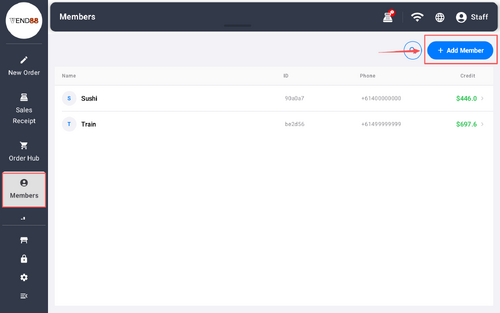
Click Add Member in the member list
- Enter the member information. The following fields are required:
- Identifier
- First Name
- Phone Number
- Click Add.
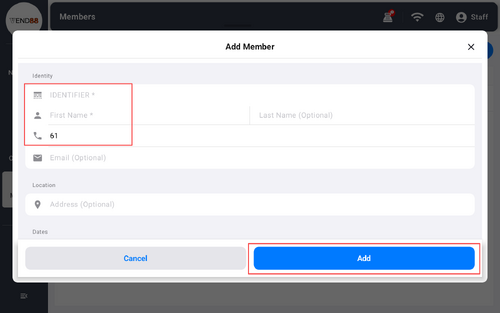
Entering information for a new member


After completing the steps above, the new member will be added successfully. If a default membership card plan has been configured for the current store, the system will automatically issue the new member a membership card under that plan.
Adding a Member through QR Ordering
- Click the user button (person icon) in the top-right corner of the QR ordering interface.
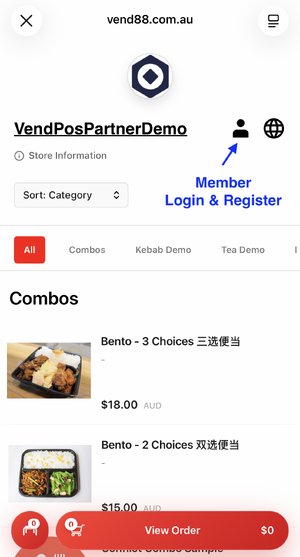
Clicking the member option
- The member login page will be displayed. To register a new member, click Register Member at the bottom of the page.
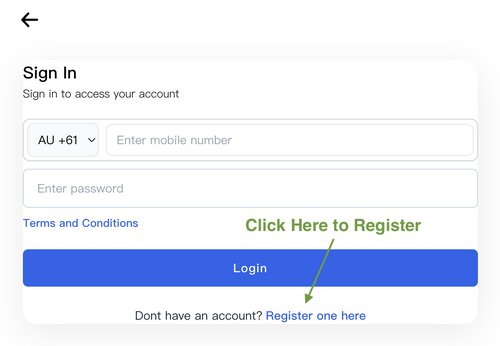
Selecting Register Member
- Enter the new member's phone number and agree to the relevant terms. If the new member was referred by an existing member, enter the referring member's phone number at the top of the page.
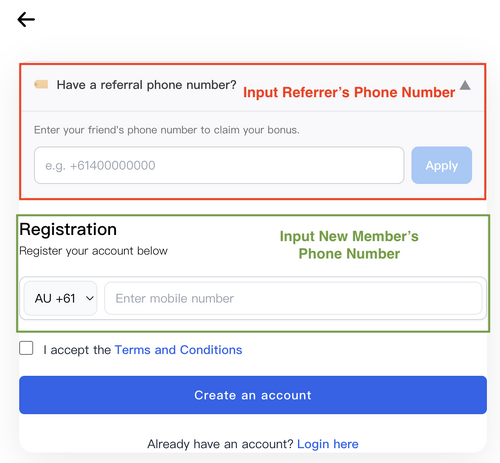
Entering the new member's phone number and the referring member's phone number
- Wait for the verification code to be sent to the new member's phone, then enter the code on the page.
- Set an account password and enter it again to confirm.
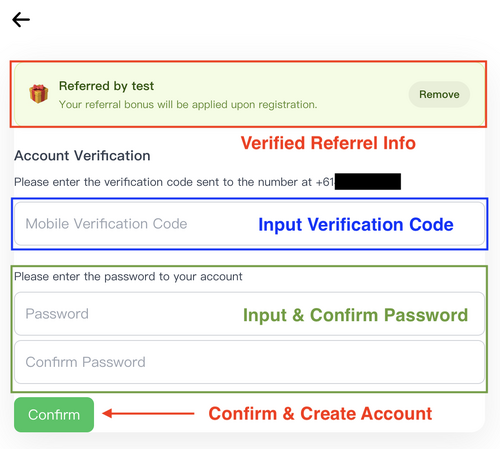
Setting the account password
- Click Confirm to complete the registration.


After completing the steps above, the new member will be registered successfully. If a default membership card plan has been configured for the current store, the system will automatically issue the new member a membership card under that plan.
Viewing and Editing Member Information
Viewing Member Information
- Click Member in the left sidebar.
- On the Member page, select the member whose information you want to view.
- By default, the Member page displays 20 members and lists their names, phone numbers, and account balances.
- To find a specific member, click Search in the top-right corner. Members can be searched by name or phone number, and matching members will be displayed in the search results.
- You can also use a scanning device to scan the QR code on a membership card. Once the QR code has been scanned successfully, the system will automatically open the corresponding member's details page.
- After opening the member details page, you can view the member's information and perform the relevant operations.
The member details page contains the following sections, from top to bottom:
- Basic Member Information: Displays the member's name, phone number, points, and account balance.
- Points Redemption: Displays the points redemption promotions currently available at the store and allows points to be redeemed for the member.
- Membership Cards: Displays the member's currently valid membership cards, including the associated membership card plan, card number, status, validity period, and other information. Membership card operations and points history are also available. If the member holds cards under other membership card plans, they will also be listed below.
- Coupon Information: Displays all coupons currently held by the member, including discount amount, validity period, status, and other details. For usage cards, the remaining number of uses will also be displayed.
- Punch Card Information: Displays the member's active punch cards and their progress, and allows new punch cards to be added.
- Member Details: Displays additional member information not included in the basic information above, such as email address, address, and date of birth.
- Member Notes: Displays notes added for the member. Notes are divided into three categories: Normal, Information, and Important.
- Add Mobile Membership Card: Allows the membership card to be added to Apple Wallet or Google Wallet.
Editing Member Information
- On the member details page, locate the Account Information section.
- Click Edit on the right side of the section.
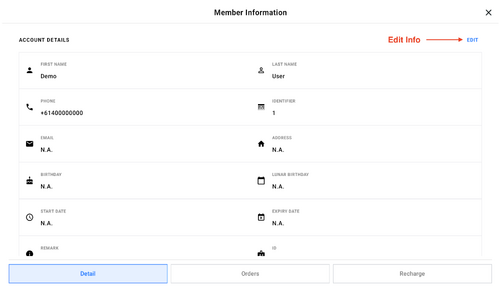
Selecting the member information to edit
- Update the required member information:
- For basic information such as the member's name and phone number, edit the corresponding fields directly.
- To specify whether the member is allowed to purchase on credit, select Yes or No.
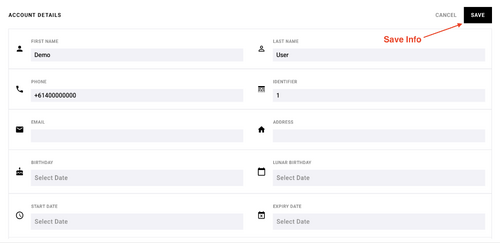
Editing member information 
Selecting whether purchases on credit are allowed
- After completing the changes, click Save on the right side of the Account Information section.


After completing the steps above, the member information will be updated successfully.
Adding Member Notes
- In the Member Notes section, click Add on the right.
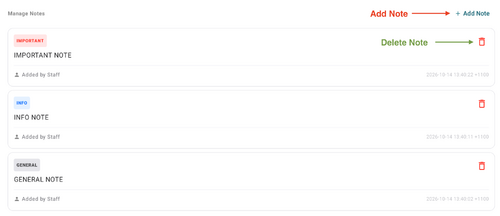
Viewing member notes
- In the pop-up window, select a note category: Normal, Information, or Important.
- Enter the note.
- Click Save in the top-right corner.
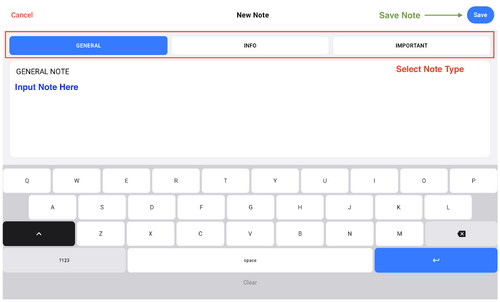
Editing a member note


After completing the steps above, the member note will be added successfully.
To delete an existing note, click Delete next to the note you want to remove.
Membership Cards
Vend88 provides membership card features that allow different membership card types and benefits to be configured according to the needs of different members, enabling differentiated membership management and services.
- For details, see Membership Card.
Coupons, Usage Cards and Punch Cards
Vend88 provides coupons and usage cards for members. Different types of coupons and usage cards, together with their corresponding discounts, can be configured to provide members with discounts when ordering.
- For details about coupons, see Coupon.
- For details about usage cards, see Usage Card.
Vend88 also provides punch cards for members. Merchants can configure punch rules for specified products. When a member purchases the specified products the required number of times, they will receive the corresponding reward.
- For details about punch cards, see Punch Card.
Account Balance and Points Management
Vend88 supports prepaid account balances. Members can add funds to their accounts in advance and use their account balance to pay for future purchases. Merchants can also configure top-up promotions that provide corresponding rewards to encourage members to add funds to their accounts.
- Account top-up: Member/Top-up
Vend88 also provides a points system. Members can earn points through purchases, promotions, and other activities, and redeem their points for rewards such as account balance or coupons.
- Points management: Member/Points
User Guide
- Add a member: Membership/Add Member
- Edit member information: Membership/Edit Member Information
- Add credit: Membership/Add Credit